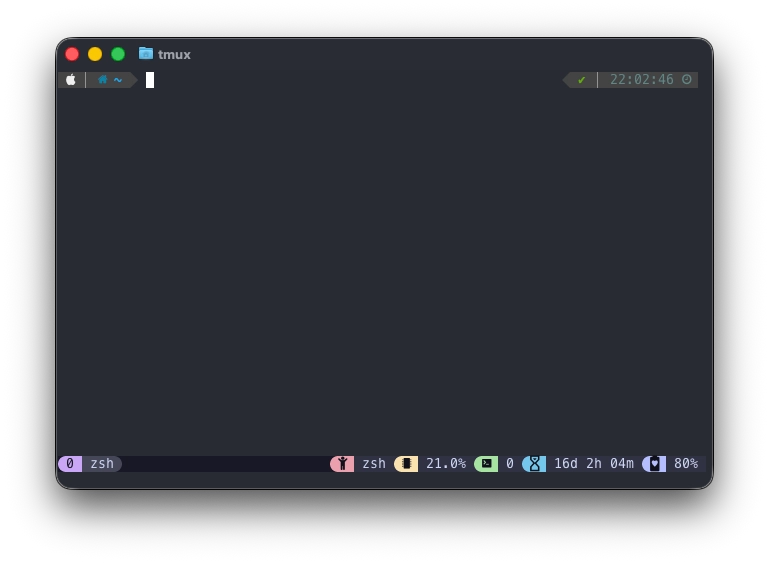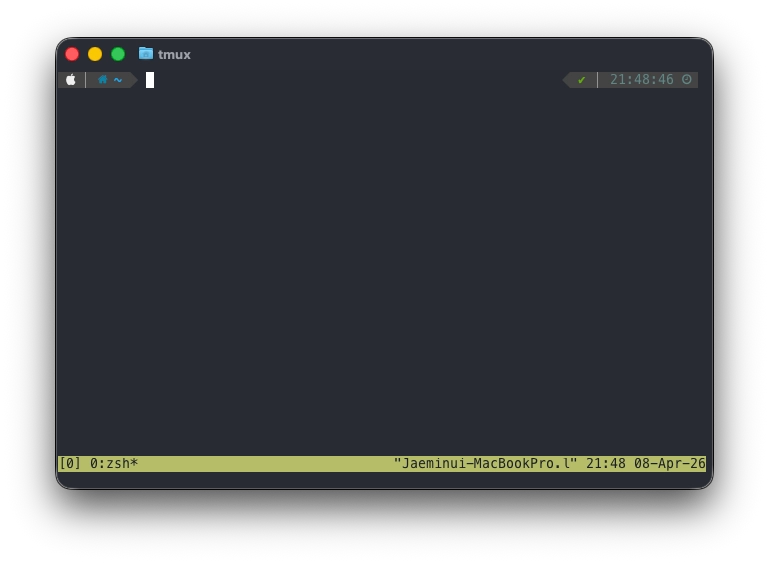
tmux 를 처음 키게 되면 이 재미없는 하단 바를 볼 수 있다. 이 것을 우리는 커스텀을 할 것 이다.
1. Catpuccin 설치
https://tmuxcheatsheet.com/theming-and-customizing/
Theming and Customizing Tmux with Catppuccin and Additional Plugins
Are you tired of the plain, default look of Tmux? In this guide, we'll explore how to transform the appearance of Tmux using the beautiful Catppuccin theme (also known as Catppuccin flavor), along with essential plugins that will make your terminal more vi
tmuxcheatsheet.com
# Install the Catppuccin port for tmux
mkdir -p ~/.config/tmux/plugins/catppuccin
git clone -b v2.1.0 https://github.com/catppuccin/tmux.git ~/.config/tmux/plugins/catppuccin/tmux
echo "run ~/.config/tmux/plugins/catppuccin/tmux/catppuccin.tmux" >> ~/.tmux.conf
이렇게 설치하게되면 ~/.tmux.conf 는 다음과 같아진다.
run ~/.config/tmux/plugins/catppuccin/tmux/catppuccin.tmux
해당 tmux 파일을 실행하라 ~ 가 된다.
위의 링크를 더 읽어보면 ~/.tmux.conf 를 이렇게 작성하기를 추천한단다.
# Options to make tmux more pleasant
set -g mouse on
set -g default-terminal "tmux-256color"

# Configure the catppuccin plugin
set -g @catppuccin_flavor "mocha" # latte, frappe, macchiato, or mocha
set -g @catppuccin_window_status_style "rounded" # basic, rounded, slanted, custom, or none

# Load catppuccin
run ~/.config/tmux/plugins/catppuccin/tmux/catppuccin.tmux
# For TPM, instead use `run ~/.config/tmux/plugins/tmux/catppuccin.tmux`

# Make the status line pretty and add some modules
set -g status-right-length 100
set -g status-left-length 100
set -g status-left ""
set -g status-right "#{E:@catppuccin_status_application}"
set -agF status-right "#{E:@catppuccin_status_cpu}"
set -ag status-right "#{E:@catppuccin_status_session}"
set -ag status-right "#{E:@catppuccin_status_uptime}"
set -agF status-right "#{E:@catppuccin_status_battery}"

run ~/.config/tmux/plugins/tmux-plugins/tmux-cpu/cpu.tmux
run ~/.config/tmux/plugins/tmux-plugins/tmux-battery/battery.tmux
하지만 이렇게 했을 때 문제가 3가지 있다.
- 윈도우 이름이 호스트로 고정이 되어버린다.
- cpu 가 안나온다.
- battery 가 안나온다.
하나씩 고쳐보도록 하자.
2. 호스트 이름이 고정되지 않게 하자.
클로드 왈 catpuccin.tmux 를 실행하기 전에 다음과 같은 코드를 넣으라고 한다.
set -g @catppuccin_window_text " #W"
set -g @catppuccin_window_current_text " #W"
catpuccin.tmux 가 해당 이름을 덮어써서 그렇다고 한다. 아님말고~
3. TPM 을 설치한다.
현재 우리는 plugins 폴더에 tmux-plugins 가 없을 것이다. 만들고 tpm 을 설치한다.
mkdir ~/.config/tmux/plugins/tmux-plugins
git clone https://github.com/tmux-plugins/tpm ~/.config/tmux/plugins/tmux-plugins
이후에 다른 플러그인도 불러온다.
git clone https://github.com/tmux-plugins/tmux-battery ~/.config/tmux/plugins/tmux-plugins
git clone https://github.com/tmux-plugins/tmux-cpu ~/.config/tmux/plugins/tmux-plugins
4. 파일 저장 후 실행
# ~/.tmux.conf
# # # Options to make tmux more pleasant
set -g mouse on
set -g default-terminal "tmux-256color"

# # # Configure the catppuccin plugin
set -g @catppuccin_flavor "mocha" # latte, frappe, macchiato, or mocha
set -g @catppuccin_window_status_style "rounded" # basic, rounded, slanted, custom, or none

set -g @catppuccin_window_text " #W"
set -g @catppuccin_window_current_text " #W"

# # # Make the status line pretty and add some modules
set -g status-right-length 100
set -g status-left-length 100
set -g status-left ""
set -g status-right "#{E:@catppuccin_status_application}"
set -agF status-right "#{E:@catppuccin_status_cpu}"
set -ag status-right "#{E:@catppuccin_status_session}"
set -ag status-right "#{E:@catppuccin_status_uptime}"
set -agF status-right "#{E:@catppuccin_status_battery}"

set -g @plugin 'tmux-plugins/tpm'

run ~/.config/tmux/plugins/tmux-plugins/tmux-cpu/cpu.tmux
run ~/.config/tmux/plugins/tmux-plugins/tmux-battery/battery.tmux
run ~/.config/tmux/plugins/catppuccin/tmux/catppuccin.tmux
tmux source ~/.tmux.conf
실행하면 끝